
Some players install your app to solve a specific problem. Others click Install out of curiosity, before they fully understand what it does. Your first session needs to give both a reason to keep using it.
Players can also arrive through Overwolf’s app recommendations: a CRN recommendation notification or a CRI offer during the installation of another app. They may open your app with little context, or without remembering they accepted the offer. Introduce the app by name, show how it helps them, and make the next step obvious.
The first-time user experience (FTUE) covers what happens from the first app open to the first useful result. Players need to understand what to do, know whether the app is working, and see how it helps them.
For implementation details and examples, start with Overwolf’s FTUE guidelines.
For an Overwolf app, that journey can span the desktop, gameplay, and the screen after a match. Use the parts that fit your app. A guide app might help immediately; a match-analysis app may need a completed match before it has anything useful to show.
Define the First Useful Result
Before designing a welcome screen, finish this sentence: “A new player gets value from my app when they…” That gives you a concrete outcome to build towards.
For example, a player might:
- Find a build recommendation for the character they are about to play
- Use a widget to check information they would otherwise have to look up
- Find an answer in a guide that helps them get past a difficult encounter
- Review a match report and identify one thing to improve next time
- Watch a saved highlight they wanted to keep
Choose a measurable action that gets close to that outcome. For a highlights app, it could be playing back the first saved clip. This is your activation milestone. Completing setup or loading an overlay tells you the app is ready; you still need evidence that the player used something valuable.
Work backwards from that moment. Keep the steps needed to make it happen, and move optional preferences and feature introductions until later.
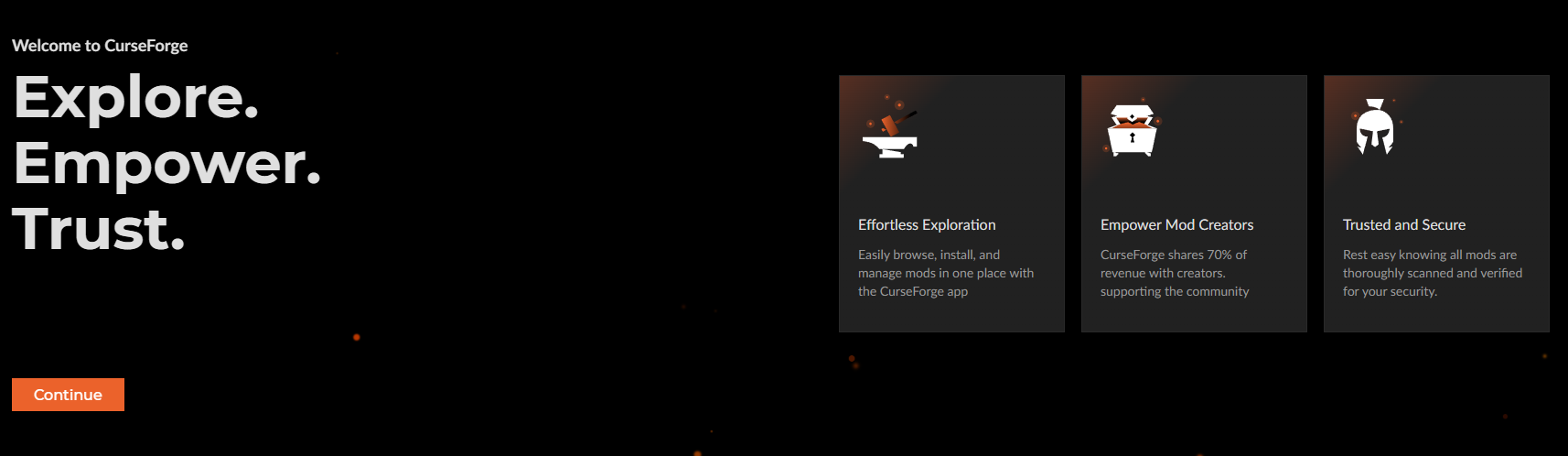
Use the Desktop Screen to Set Expectations
The first screen after installation should answer three questions:
- How will this app help me?
- When and where will it work?
- What do I need to do next?
Give the player one clear next action. For a match-analysis app, the message could be: “Play a supported match, then come back here to review your performance.” Name the supported game and explain any setup they need to complete first.
If an account is required for that first result, explain why. If it can wait, let players try the app first. Save the feature catalogue for when they have a reason to explore.
Make introduction screens easy to skip. Keep required setup separate, and make it clear when something still needs attention. A player who skips the tour should still know how to get started.
Teach in Context
Once the player reaches a feature, explain the action they need there. For an overlay, show how to open and close it, using the shortcut currently configured in your app.
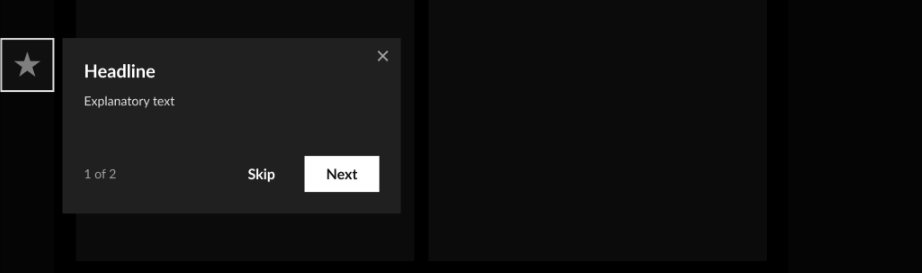
Coach marks are small hints attached to a button or part of the interface. Use one when a control needs an explanation, such as a hint beside the button that saves a clip. Keep it dismissible, with a way to turn recurring hints off in settings.
If a feature needs practice, let players try one useful action. For a movable widget, that could mean dragging it somewhere comfortable on the screen. Keep the tutorial short and punchy, let players skip it, and make it available again from Help or Settings.
An empty state is what players see before there is any content. Use it to explain what happens next. A report screen could say: “Your first report will appear here after you finish a supported match.” If the app has a setup problem, say what needs fixing instead of showing the same waiting message.
Time for guidance around play. Show setup help before the match where possible, and save detailed explanations for afterwards. A player in the middle of a fight needs to be able to dismiss your prompt immediately.
Treat the Post-Match Screen as Part of Onboarding
If your app delivers its value after a match, onboarding needs to help players find and use that result. Make it obvious when their report or highlights are ready and where to open them.
Lead with something the player can act on. In a match report, that might be one performance trend with a short explanation of what to try next time. In a highlights app, put the saved clip where they can play it immediately. Introduce the rest as they explore.
If you offer premium features, explain the extra benefit where it is relevant to what the player is doing.
Let the first useful result establish why the app is worth returning to before asking for an upgrade.
Track Where Players Get Stuck
Start with a few events in your app’s analytics. For a match-analysis app, you could track:
- First app open
- Required setup completed
- First supported match started
- First supported match completed
- First report successfully generated
- First report opened
- Another report opened after a later match
This sequence is a funnel: it shows how many players reach each step and where they stop. Adapt it to the result your app provides. You do not need to track every button to learn something useful.
Count the players who reach each step and how long it takes. For example, if 40 players have a report ready and 10 open it, check whether the report is easy to find. Opening it is a useful signal; feedback and repeat use help you judge whether it actually helped.
Investigate the drop before changing the copy. A missing report could be a data or technical problem. A player who installs your app but has not played a supported match has not yet had a chance to use it. Neither situation tells you that the onboarding message failed.
Test one improvement at a time. Compare players at the same stage and give them the same amount of time to reach the result. If your app needs a full match, allow for that wait when judging the first session.
Watch Someone Try It

Ask someone who has never used your app to try it without coaching them. Watch whether they can:
- Explain what the app will help them do
- Find the next step and complete the required setup
- Tell when the app is ready, waiting for a match, or needs attention
- Find the first useful result and explain why it helps
- Dismiss guidance and find it again if they need it
- Find their way back to the feature in another session
Where they hesitate is where you start improving. The fix might be a clearer button, a better waiting message, or one less setup step.
What to Take Away
Give players a short, clear path to the moment they understand why your app is useful.
- Show the value early. Focus on one useful result, such as a build they can use or a highlight they want to keep.
- Set clear expectations. Explain what the app does, when it will work, and what the player should do next.
- Choose the right moment for guidance. Keep hints brief and easy to dismiss, and save detailed explanations for outside active gameplay.
These basics go a long way. Keep watching new players, checking where they stop, and refining the experience as your app grows. Revisit the same principles when you add features or reach a new audience.